Quick start guide
This guide takes you through setting up an ASI BAC6 controller from the evaluation kit with your battery and motor, using BACDoor®3. When you finish, the motor runs from a throttle. Each step gives the basic actions and links to the reference page for details.
Critical Safety Instructions
Installation or setup of the Accelerated Systems controller must be done by a trained technician. Failure to follow the warnings can damage the controller, computer, vehicle and/or can cause serious injury or death.
Before starting to connect, setup or run the Accelerated Systems controller READ THE FOLLOWING:
- Make sure to wear appropriate PPE (Personal Protective Equipment) when working with Batteries or moving parts.
- Use Insulated Tools to protect from electric shock.
- ALWAYS use the USB Isolator between the Computer and the Controller. If it is not used the computer and/or the Controller can be damaged! ASI is not responsible for any damage.
- Make sure the Battery or Power Source is Disconnected or in the OFF position before making any connections. The area around the vehicle must be clear.
- Keep all People, Children and Pets away from the vehicle when testing or running the system. The motor will rotate during setup and testing.
- Before testing the Motor/Vehicle make sure the Wheels are off the ground and supported on an approved Bike Stand or Automotive Jack Stands.
- Alternatively the Motor must be secured to a Workbench Vice or a Solid Stand to keep it in place for testing.
- Make sure all moving parts (e.g. Pedals, Wheels) are clear to move in either direction.
Before you start
Tools required
- Personal protective equipment (PPE), for example safety glasses and gloves.
- Insulated hand tools, for example wrenches and screwdrivers.
- A stand that holds the vehicle or motor securely with the wheel off the ground, for example a bike stand or jack stands.
- A crimper for the motor and battery connectors.
- A torque wrench (high-power controllers).
- A computer with BACDoor®3 installed, and an ASI account to sign in.
What is in the evaluation kit
- The controller.
- The evaluation harness.
- A USB-TTL serial cable.
- A USB isolator and USB cable.
- High-power controllers: the mounting hardware listed in Wire the controller.
Required system information
Gather this information before you start. If you cannot find a value, contact your battery or motor manufacturer.
| Information | Description | Where to find it |
|---|---|---|
| Rated system voltage (V) | The nominal battery voltage, for example 48 V. Not the fully charged or cutoff voltage. | Battery datasheet |
| Battery peak current (A) | The maximum current the battery can supply. | Battery datasheet |
| Rated motor power (W) | The maximum electrical power you allow the motor to draw. Not the continuous power. Set it no higher than the battery peak power (rated system voltage × battery peak current). | Motor and battery datasheets |
| Rated motor current (A) | The motor's rated peak phase current. | Motor datasheet |
| Rated motor speed (RPM) | The motor's no-load speed at the rated system voltage. For a geared motor, multiply the output speed by the gear ratio. | Motor datasheet |
| Motor position sensor | Hall sensors, sine-cosine encoder, or none (sensorless). | Motor datasheet |
| Motor pole pairs | The number of magnets in the rotor divided by 2. | Motor datasheet |
| Gear ratio | Motor revolutions per wheel revolution. For a direct-drive motor, use 1. | Motor datasheet |
Required system information
See the Glossary for these terms.
Wire the controller
WARNING
Your electrical system must have a functioning battery management system (BMS), a correctly sized fuse, a correct wire gauge, a pre-charge circuit and a safety cutoff switch. See Protections & fusing.
DANGER
- Voltage and current spikes must not exceed the controller's input or output ratings.
- The controller is designed only for battery-powered systems.
Do not connect battery positive (B+) yet. You connect it last, in Connect the computer and power up.
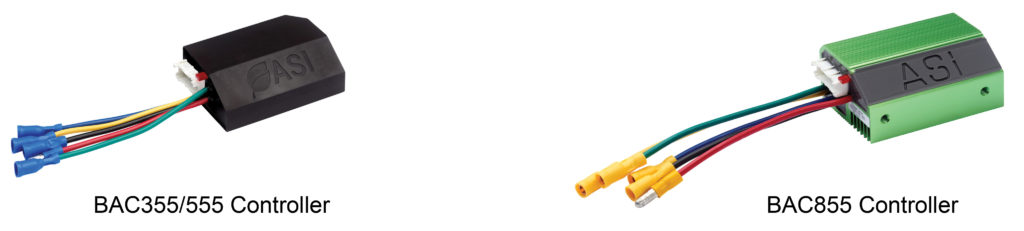
Low-power controllers
-
Crimp the bullet connectors to the motor phase wires and the battery wires.
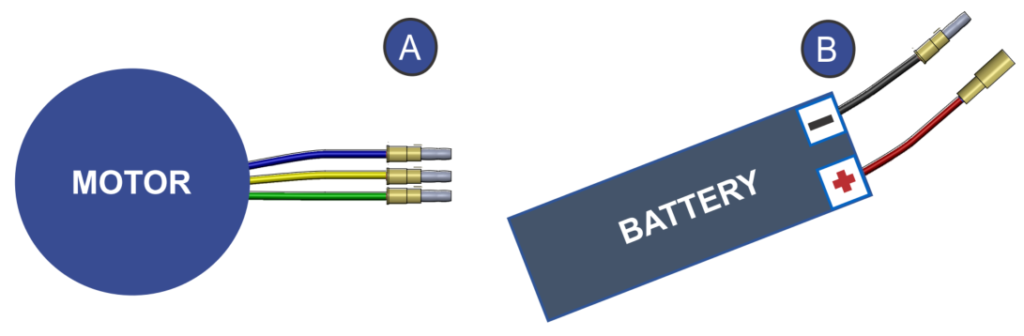
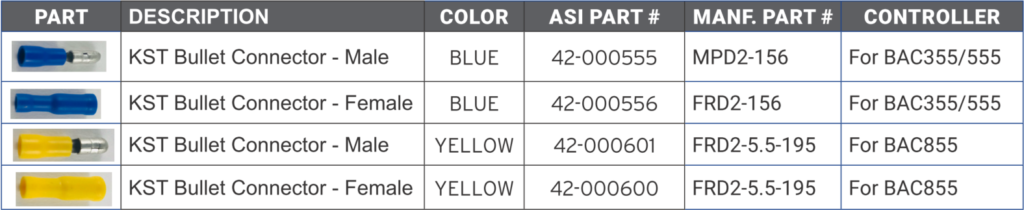
Bullet connectors
-
Connect battery negative to the controller's black wire (A).
- Plug the evaluation harness into the controller connector (B).
- Connect the motor phases (C): green to phase A, yellow to phase B, blue to phase C. Do not connect the red B+ wire yet.
- Plug the key-in jumper into the evaluation harness (D).
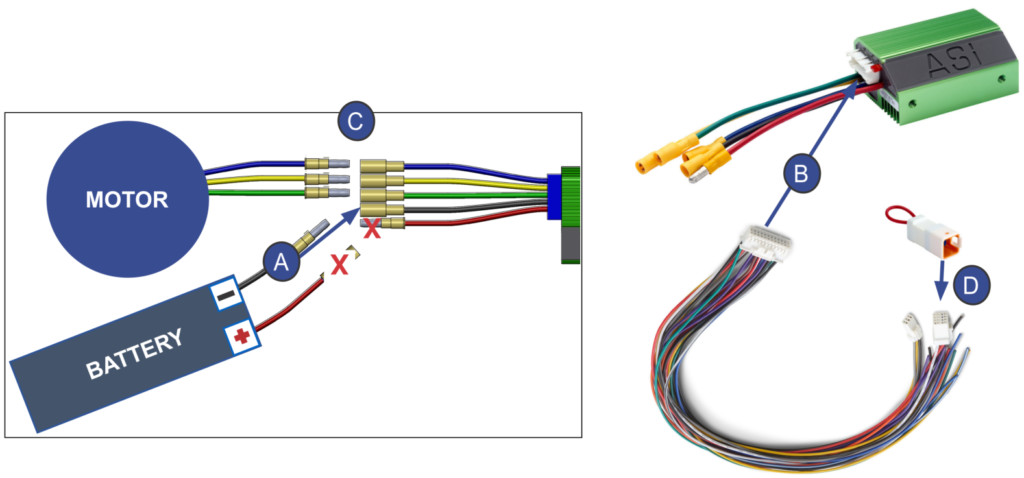
Low-power wiring
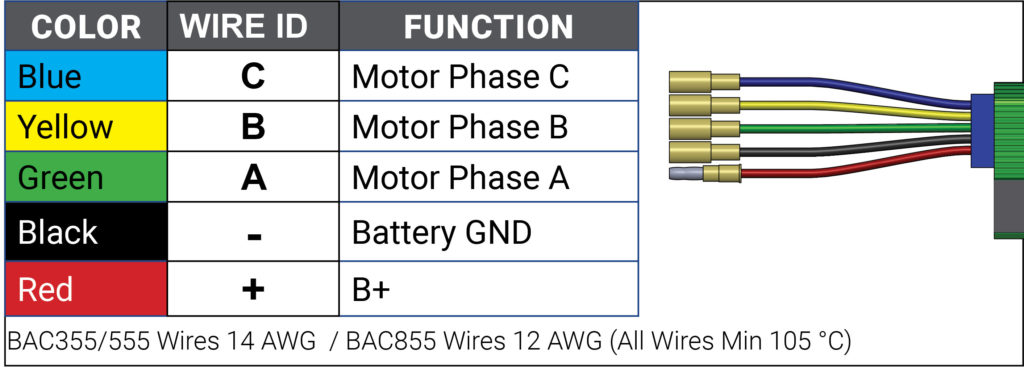
Low-power controller wires
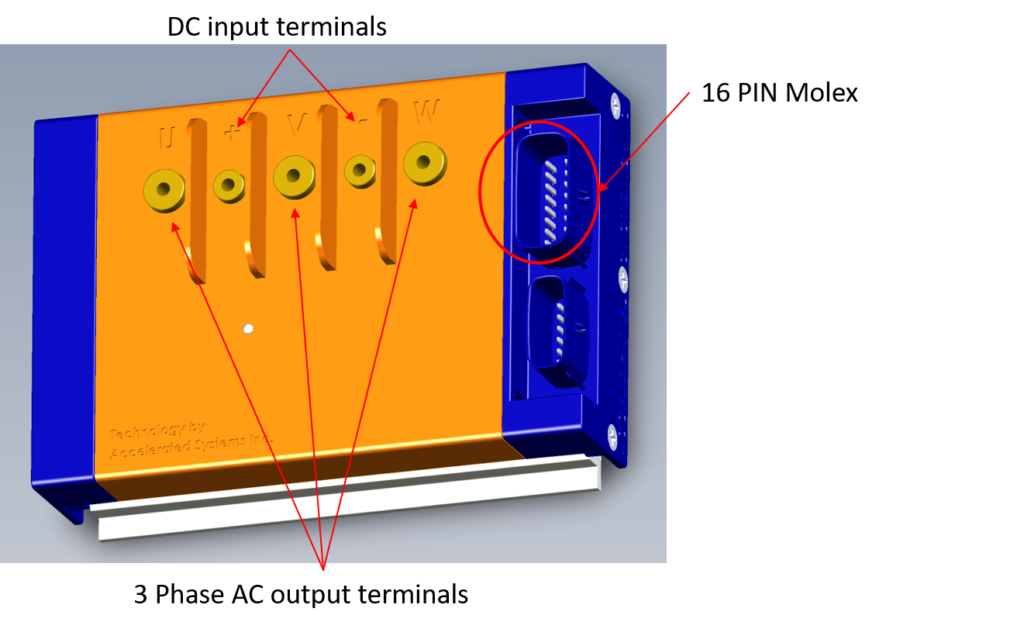
High-power controller DC input terminals, 3-phase output terminals and 16-pin Molex connector
| Item # | Description | QTY | BAC2000 | BAC4000 | BAC8000 |
|---|---|---|---|---|---|
| 5 | Controller Clip | 4 | x | x | x |
| 6 | M5 x 12mm Hex Head | 5 | x | x | |
| 7 | M5 Lock Washer | 5 | x | x | |
| 8 | M5 Flat Washer | 5 | x | x | |
| 9 | M6 x 14mm Hex Head | 5 | x | ||
| 10 | M6 Lock Washer | 5 | x | ||
| 11 | M6 Flat Washer | 5 | x |
Included hardware (x is included)
- Crimp ring terminals to the 3 motor phase wires.
- Fasten battery negative to the controller negative (−) terminal.
- Plug the evaluation harness into the 16-pin Molex connector.
- Fasten the 3 motor phase wires to the U, V and W terminals.
Install the hardware in this order: bolt, lock washer, flat washer, then the wire terminal at the bottom. Tighten the bolts with a torque wrench to 6 N·m (53 in·lb) on BAC2000 and BAC4000, or 8 N·m (70 in·lb) on BAC8000. Do not over-tighten.
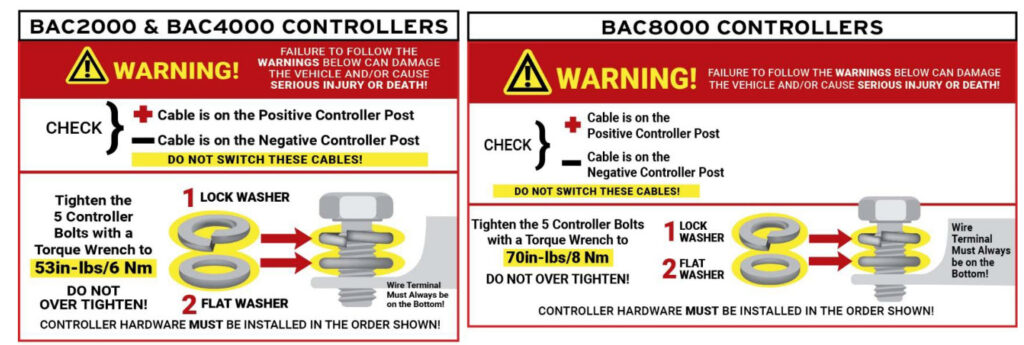
Terminal hardware and torque
Connect the computer and power up
WARNING
Always use the USB isolator between the computer and the controller. Without it, the computer or the controller can be damaged.
- Plug the USB-TTL cable into the TTL connector on the evaluation harness (A).
- Plug the other end of the USB-TTL cable into the USB isolator (B).
-
Connect the USB isolator to the computer with the USB cable (C, D). Let the computer install the drivers.
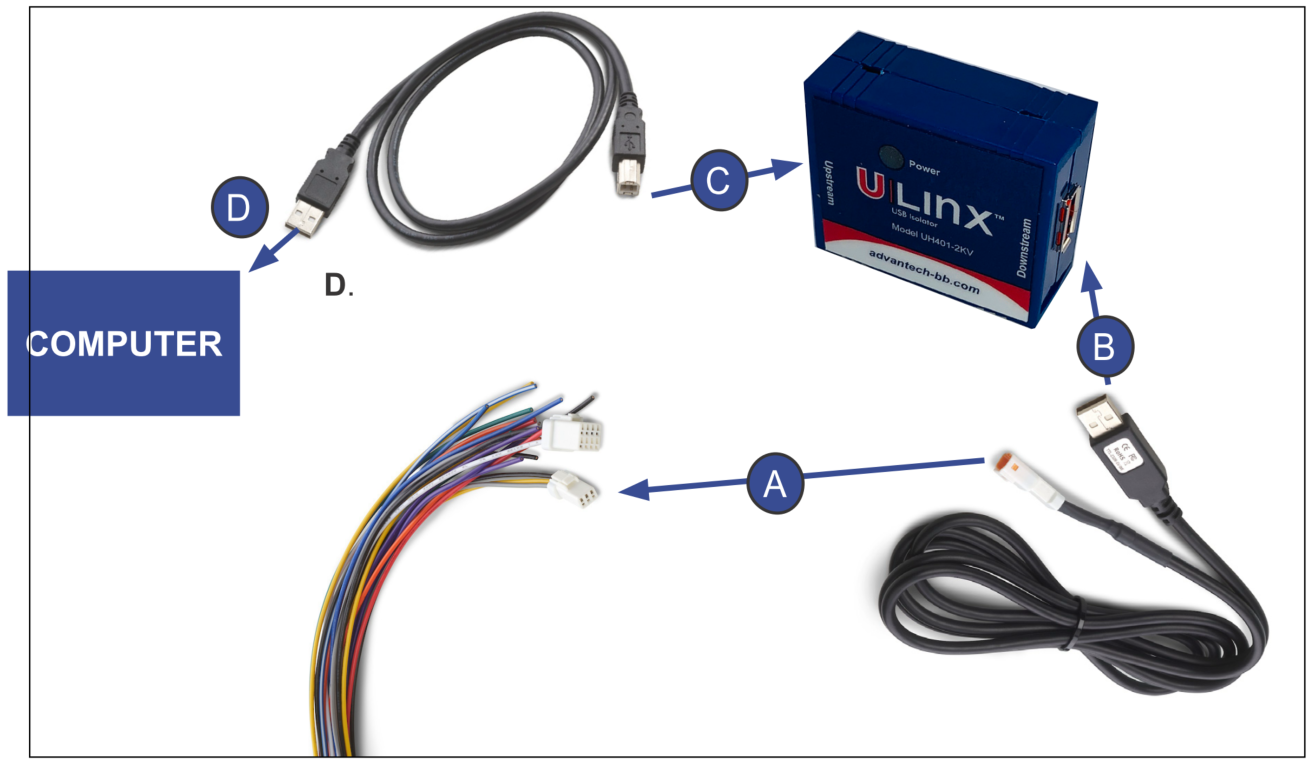
Computer connections
-
Make sure the battery has a pre-charge or soft-start function, or that you have added a pre-charge circuit. The evaluation kit does not include one. Without pre-charge, the inrush current when you connect B+ can trip the battery BMS and damage the controller or the battery. See Capacitor inrush current protection.
-
Connect battery positive (B+) through your pre-charge circuit:
Connect battery positive to the controller's red wire (F).
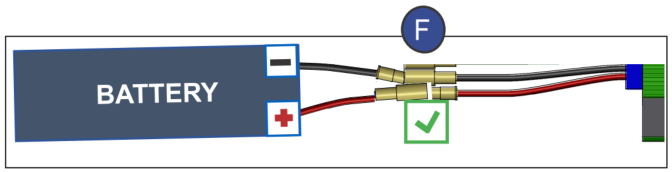
Fasten battery positive and the harness pin 9 (Key In) wire to the controller positive (+) terminal.
-
If the battery has a power switch, turn it on. Check the controller status LED.
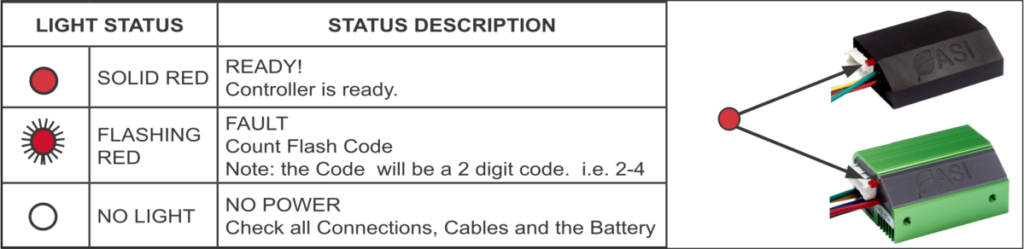
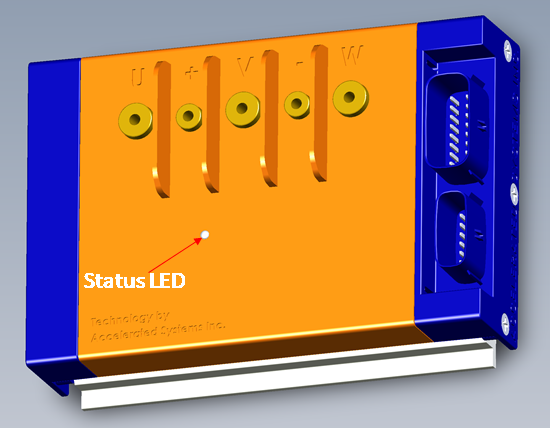
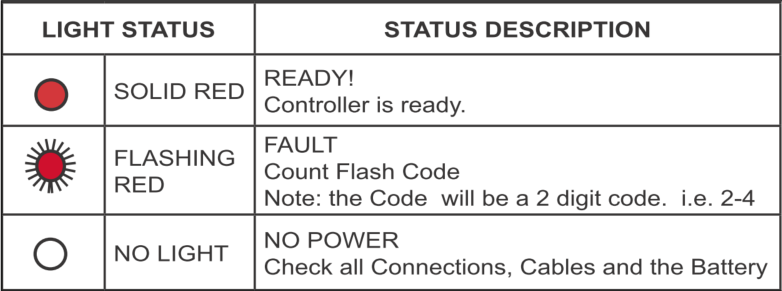
Solid means the controller is ready. Flashing means a fault: count the flash code and see Faults and warnings. No light means no power: check all connections, cables and the battery.
Connect BACDoor®3
- Open BACDoor®3 and sign in.
- In the Connection view, set Type to TTL, select the Port of the USB-TTL cable, and set Baud Rate to 115200.
-
Click Connect. If BACDoor®3 does not connect, see Connection troubleshooting.
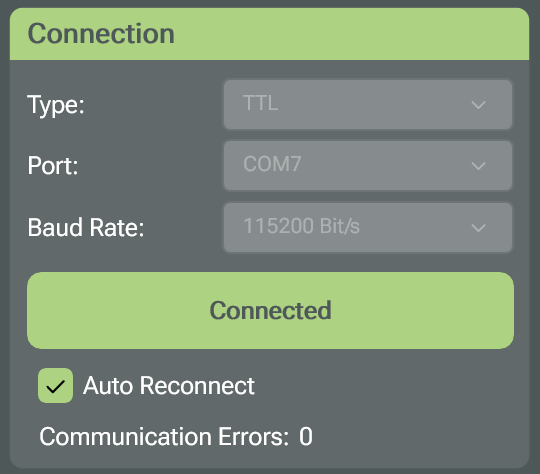
Connection view when connected
- Check the Faults and Warnings view. Some warnings are expected until the setup is complete.
In the steps below, you change parameters on the Advanced Setup page. Enter a value and press Enter, or select it from the drop-down list. Each page has three panels. The upper-left panel holds parameters you can save to flash. The lower-left panel holds temporary parameters that are lost at power off and cannot be saved. The Display Only panel on the right shows read-only values. Values you enter are written to the controller, but are lost at power off until you click Save to Flash. See the BACDoor®3 user guide.
Save a backup parameter file
WARNING
Back up the original parameters before you change anything. You need the file to return the controller to a known state.
- Click Save to File.
- Select All Parameters, and save the file.
Set the battery limits
In Advanced Setup, open Peripheral Selection > Battery.
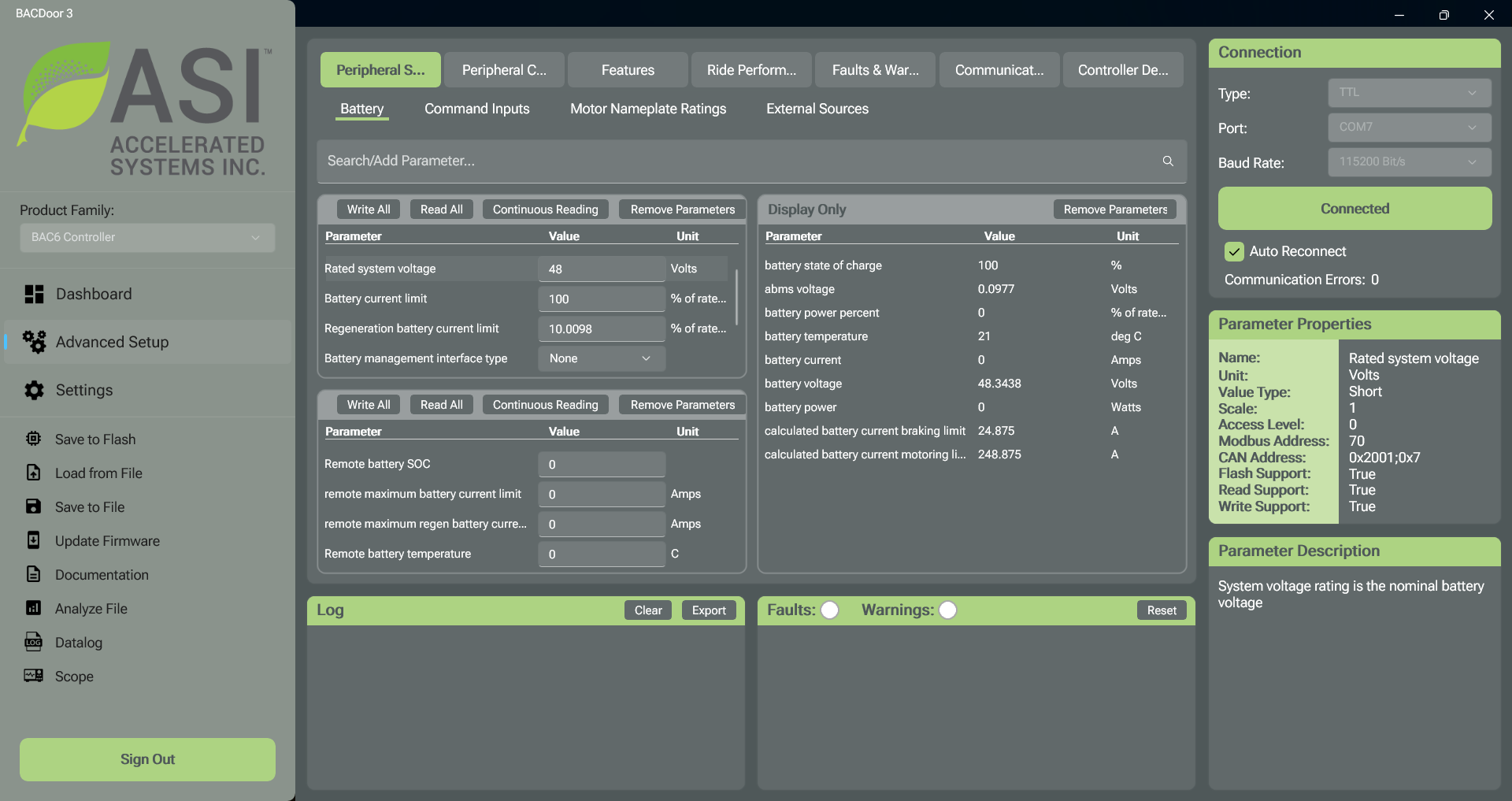
Peripheral Selection > Battery
- Set
Rated system voltageto your battery's nominal voltage. - Set
Battery current limitto 100% to start. The rated motor power you enter in the next step is then the system limit for motoring. - Set
Regeneration battery current limitto between 20% and 30% to start. The factory default is 10%, so you must raise it. This keeps regenerative braking moderate until you tune it. - Click Save to Flash.
Both limits are percentages of the rated battery current, which the controller calculates from Rated motor power (Race mode PAS power) and Rated system voltage. See Rated limits.
Note
If the battery voltage is below Rated system voltage, the controller reaches the battery current limit before the rated motor power, so output power begins to be limited. The controller does not measure battery current. It estimates it from the motor power, assuming 95% efficiency to be conservative.
If your battery has a BMS that communicates with the controller, set Battery management interface type. See BMS. You can also do this later.
Enter the motor ratings
In Advanced Setup, open Peripheral Selection > Motor Nameplate Ratings. Scroll the upper-left panel to see all of the parameters.
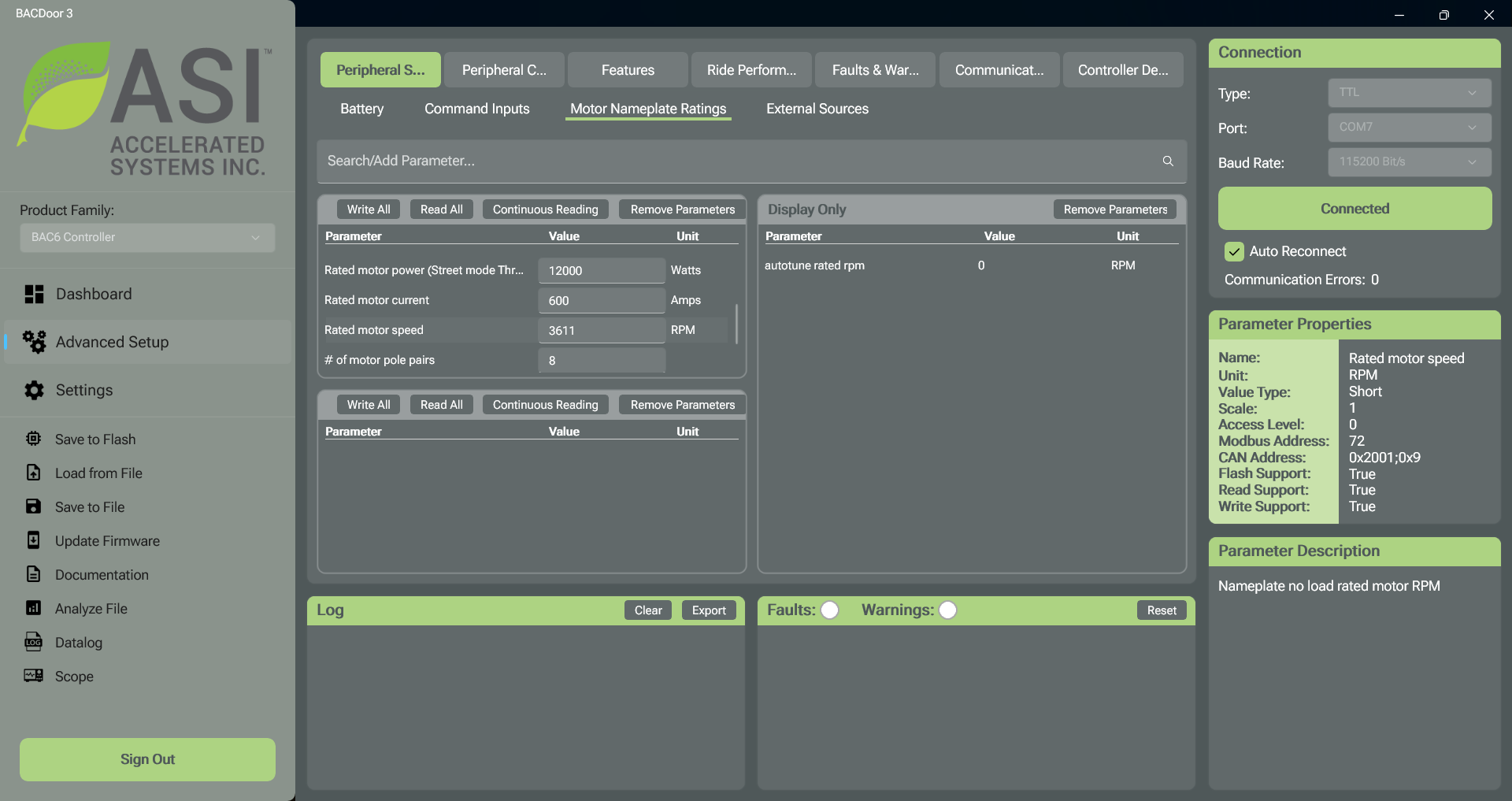
Peripheral Selection > Motor Nameplate Ratings
- Set
Rated motor power (Race mode PAS power)andRated motor power (Race mode Throttle power)to the rated motor power from your system information. If you use the alternate (street) mode, also setRated motor power (Street mode PAS power)andRated motor power (Street mode Throttle power). - Set
Rated motor current. - Set
Rated motor speed. - Set
# of motor pole pairs. - Set
Gear ratio. - Click Save to Flash.
See Motor setup for what each value does.
Run motor discovery
DANGER
- The motor will spin for up to 20 seconds, at 25% of
Rated motor speedby default (50% in firmware before 6.016), with high current. - Make sure all moving parts (for example the motor, pedals and wheels) are clear to move in either direction.
- Make sure the motor is securely mounted and the wheels are off the ground.
To stop the motor, in this order:
- Set
Motor discover modeto 0 (0 is off). - Turn off the key-in. On a low-power controller, unplug the key-in jumper.
- Only as a last resort, disconnect the battery. Disconnecting the battery while the motor is spinning can cause a voltage spike that damages the controller.
Motor discover mode is in the lower-left panel of the motor page. The results appear in the Display Only panel.
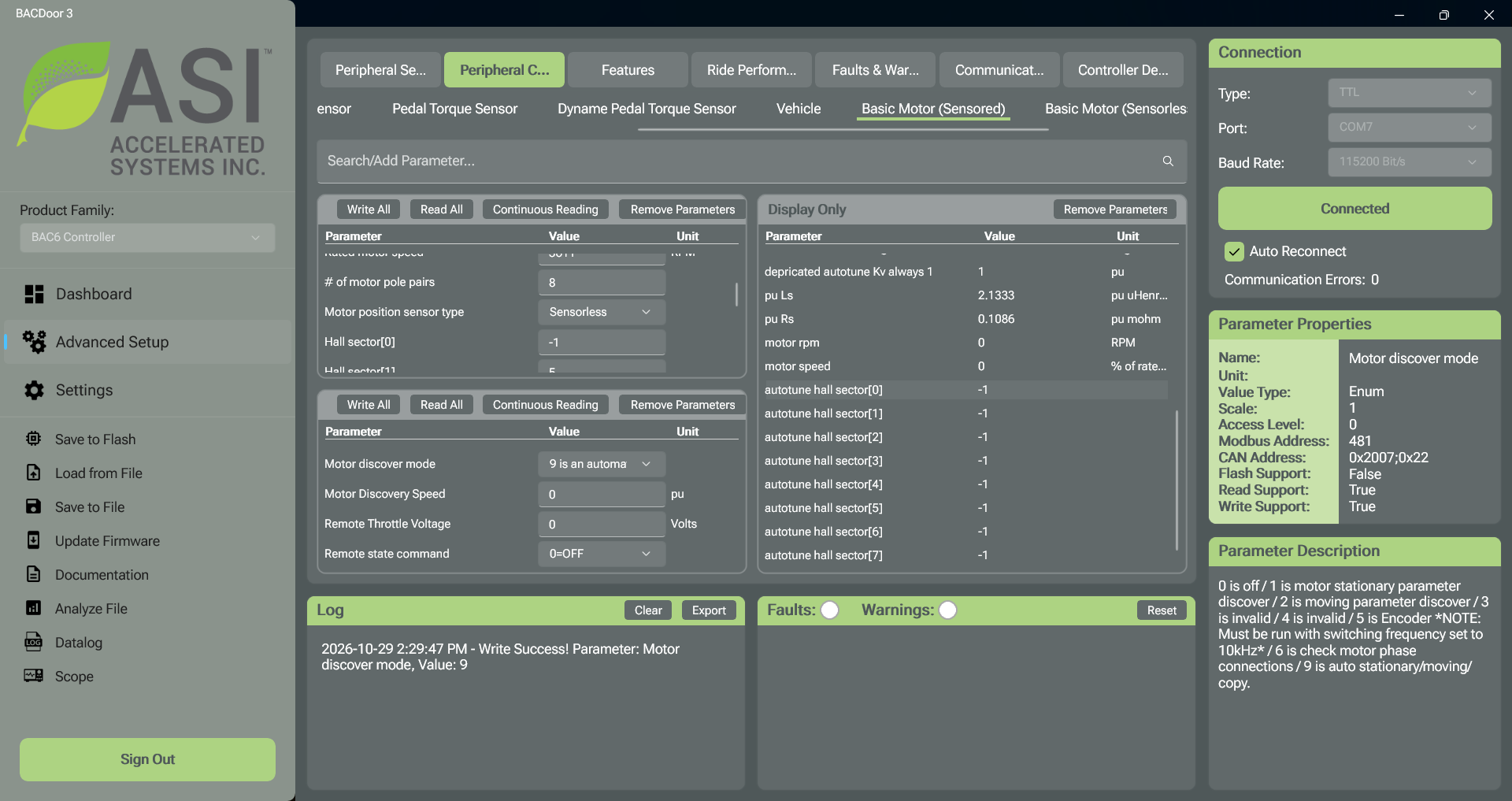
Peripheral Configuration > Basic Motor (Sensored) after discovery of a sensorless motor. The Hall table stays at -1 because the motor has no Hall sensors.
In Advanced Setup, open Peripheral Configuration > Basic Motor (Sensored).
- Set
Motor position sensor typeto Hall Based. - In the lower-left panel, set
Motor discover modeto 9 (the option that starts "9 is an automatic sequence"). The controller measures the motor, then spins it for about 20 seconds. The motor should run steadily in the intended forward direction. - When the motor has stopped, check the Display Only panel:
autotune rated rpmis close toRated motor speed.autotune hall sector[0]toautotune hall sector[7]form a valid Hall table: 0 to 5 once each, and -1 twice.
- Click Save to Flash.
In Advanced Setup, open Peripheral Configuration > Basic Motor (Sensorless).
- Set
Motor position sensor typeto Sensorless. - In the lower-left panel, set
Motor discover modeto 9 (the option that starts "9 is an automatic sequence"). The controller measures the motor, then spins it for about 20 seconds. The motor should run steadily in the intended forward direction. - When the motor has stopped, check that
autotune rated rpmin the Display Only panel is close toRated motor speed. - Click Save to Flash.
Encoder discovery needs a lower switching frequency and user access level 1. Follow the Encoder tab in Motor setup. The parameters are on Peripheral Configuration > Encoder.
If discovery fails, the motor turns the wrong way, or the results look wrong, see Motor setup troubleshooting.
Set up the throttle
Connect the throttle to the evaluation harness. See Throttle wiring and Pinout specifications.
- In Peripheral Selection > Command Inputs, set
Control command sourceto Remote, so the motor does not spin while you calibrate the throttle. -
In Peripheral Configuration > Throttle, set
Throttle sensor sourceto the input the throttle is connected to, for example Throttle.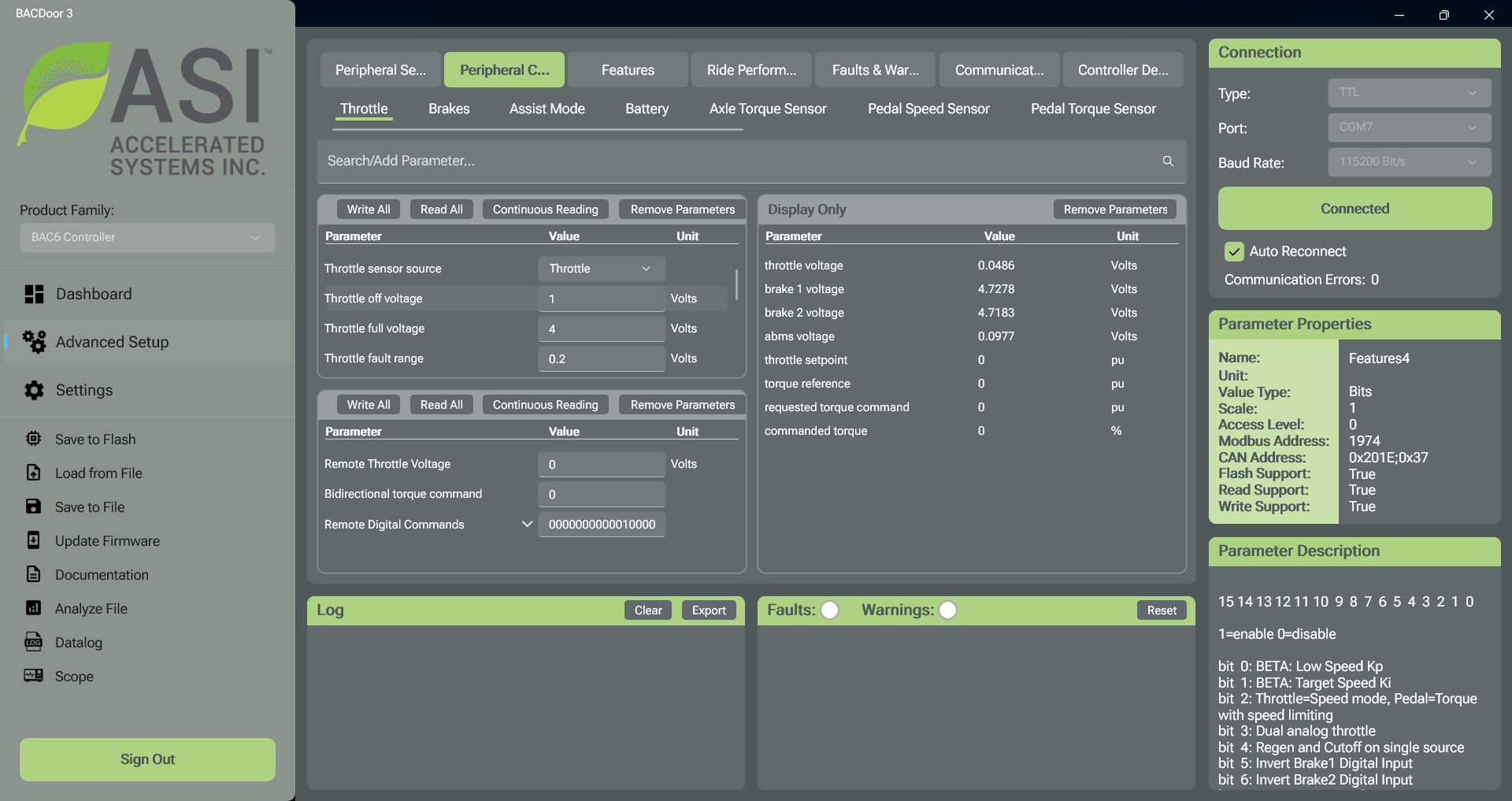
Peripheral Configuration > Throttle
-
With the throttle fully closed, read
throttle voltage(or the voltage of the input you use) in the Display Only panel, and enter it inThrottle off voltage. - With the throttle fully open, read the voltage again, and enter it in
Throttle full voltage. - In Peripheral Selection > Command Inputs, set
Control command sourceto Throttle. - Click Save to Flash.
See Throttle for the deadband, fault range and other throttle options.
Test the system
DANGER
The motor responds to the throttle from now on. Make sure the vehicle is secured and the wheels are off the ground.
- Open the throttle slowly. The motor should start smoothly and speed up as you open the throttle.
- Check that
throttle setpointon Peripheral Configuration > Throttle goes from 0 at closed throttle to 1 (100%) at full throttle. - Check that no faults appear in the Faults and Warnings view.
- Click Save to File and save a new parameter file of your working setup.
If the motor does not respond to the throttle, see Throttle troubleshooting.
Next steps
Your controller now runs the motor from the throttle. Continue with the reference pages for your application: